Share the Blog

Showing posts with label Windows 8. Show all posts

Tuesday, 8 April 2014

How to view Hidden files in Windows 8 ?


  1. Open control panel by shortcut on desktop or by going to charms > settings > Control panel.
  2. Now click on the appearance and personalisation.
  3. Here in the folder options click on show Hidden files button.
  4. Check the Show hidden files button and click OK.
  5. Now you will be able to see the files that are hidden on your PC.
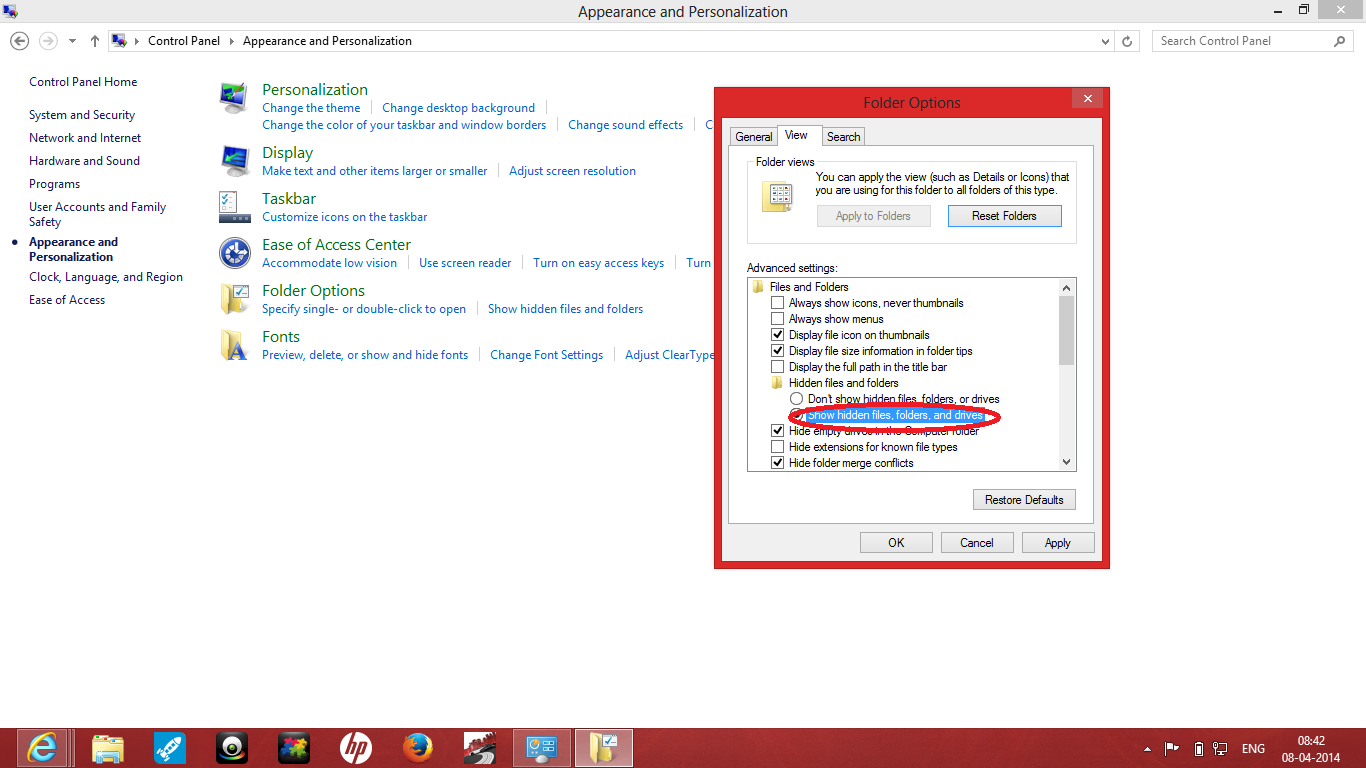
                                 Click Images To view Clearly. Watch the Video !
Wednesday, 19 March 2014

Secrets and tips for Windows 8

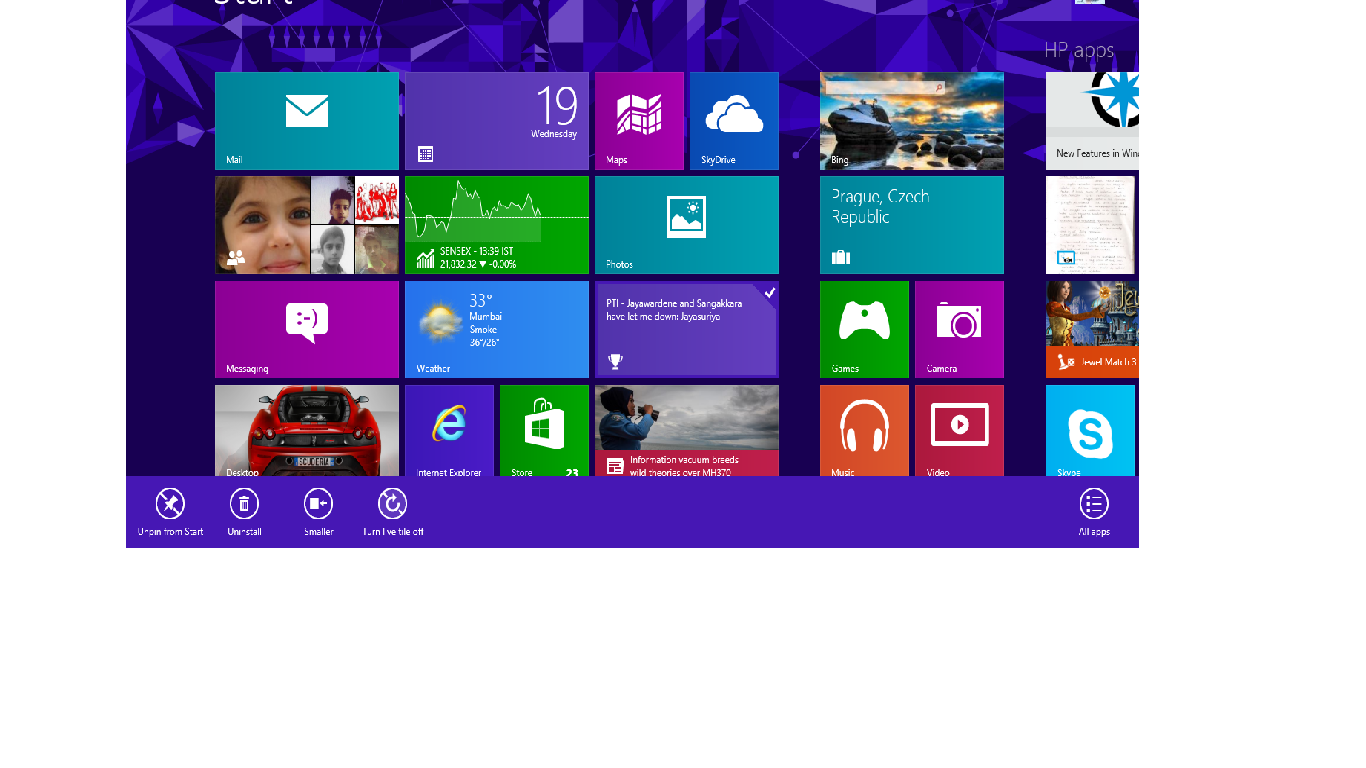
     How to turn live tiles off ???
  1. Firstly press the windows button on your keyboard.
  2. Right click on the app for which you want the live tiles to be off.
  3. Click on the "Turn live tile off" button.
   Use two apps Simultaneously
  1.   Open one app like desktop i.e. the one of the app you want to use.
  2. Now open the other app like Mail in Windows 8.
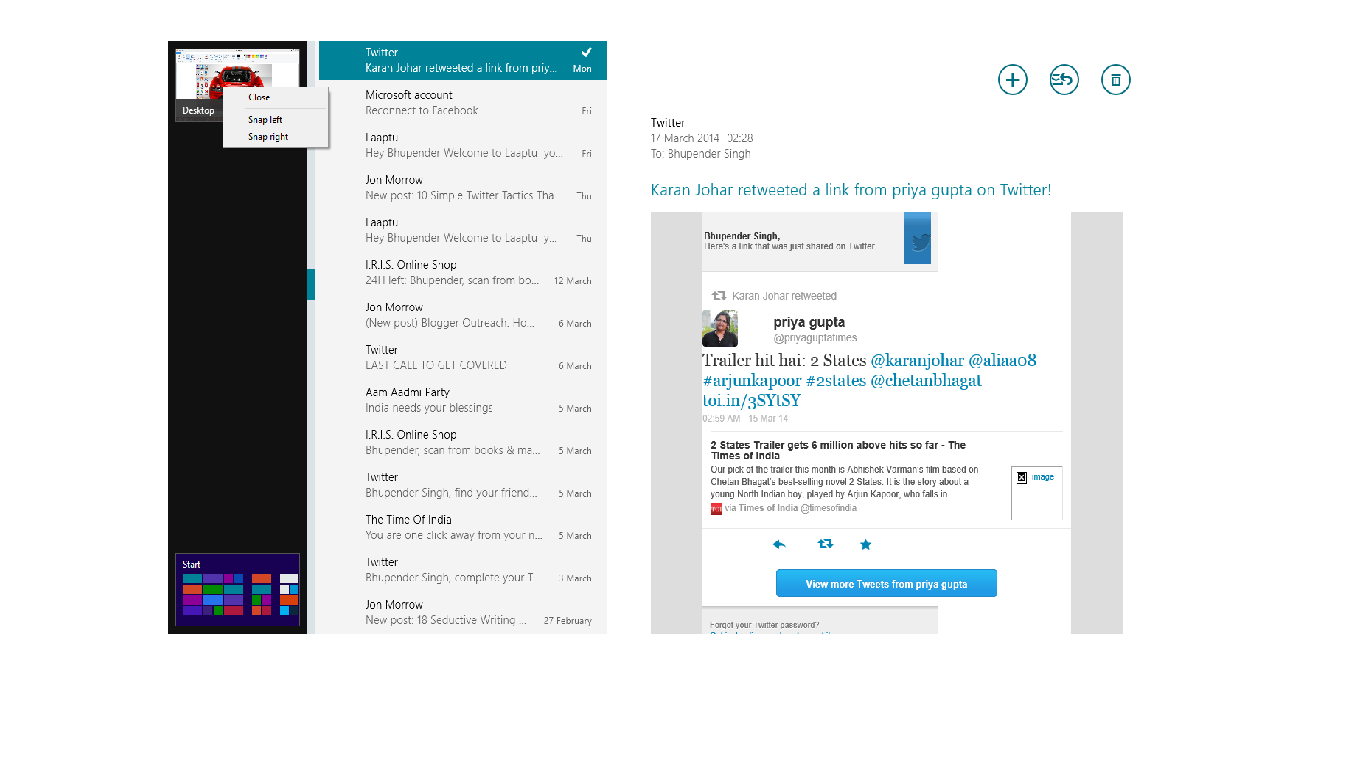
  3. Drag the mouse to top left corner of the desktop. There you will see a small view of the other app i.e. desktop.
  4. Right click there and click on snap left or snap right button as per your wish.
  5. You can use the other app by double clicking on the line between the two apps.
     

Windows 8 Keyboard Shortcuts

Knowing at least some of the Windows 8 keyboard shortcuts will make your Windows 8 experience much more enjoyable. Try to memorize these top Windows 8 shortcut keys.
  • Press the Windows key to open the Start screen or switch to the Desktop (if open).
  • Press the Windows key + D will open the Windows Desktop.
  • Press the Windows key + . to pin and unpin Windows apps on the side of the screen.
  • Press the Windows key + X to open the power user menu, which gives you access to many of the features most power users would want (e.g. Device Manager and Command Prompt).
  • Press the Windows key + C to open the Charms.
  • Press the Windows key + I to open the Settings, which is the same Settings found in Charms.
  • Press and hold the Windows key + Tab to show open apps.
  • Press the Windows key + Print screen to create a screen shot, which is automatically saved into your My Pictures folder.
                                                             For suggestions Contact me

Increase Startup Speed in Windows 8

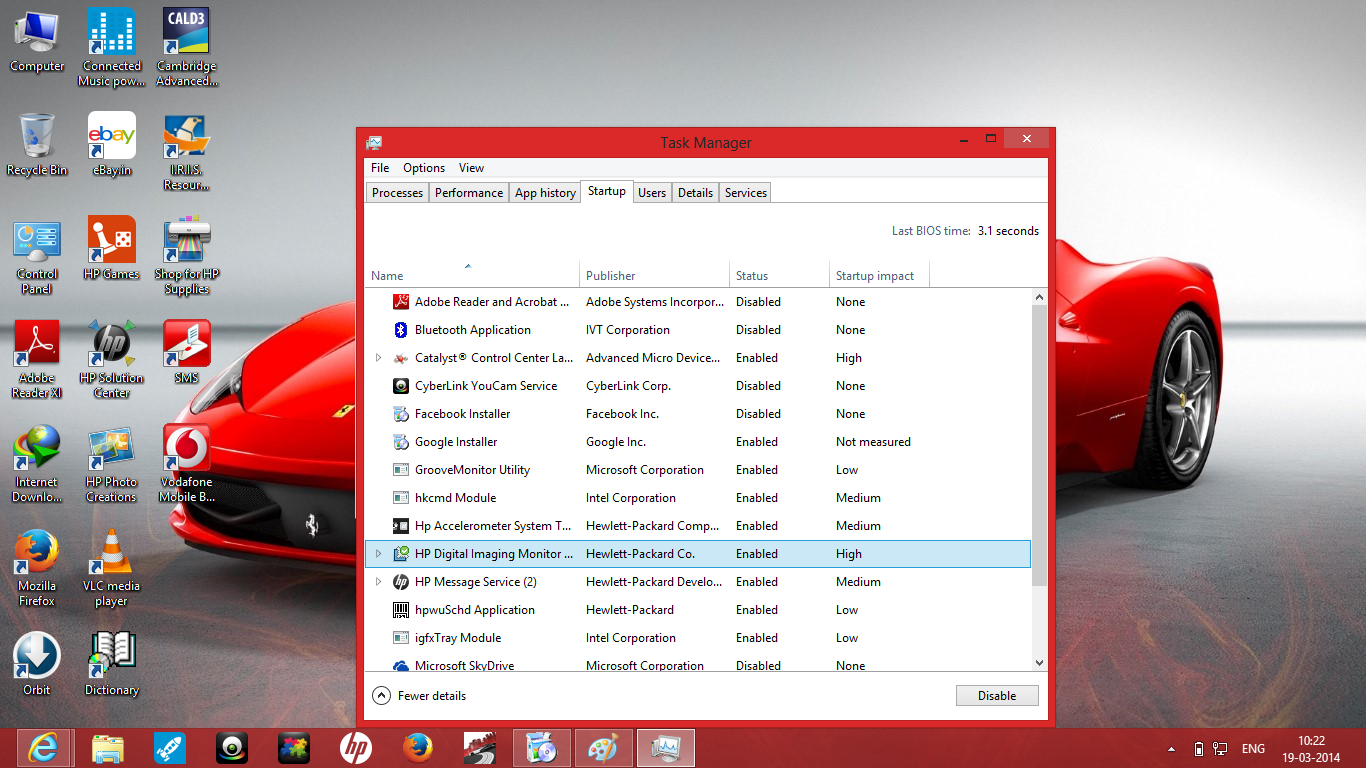
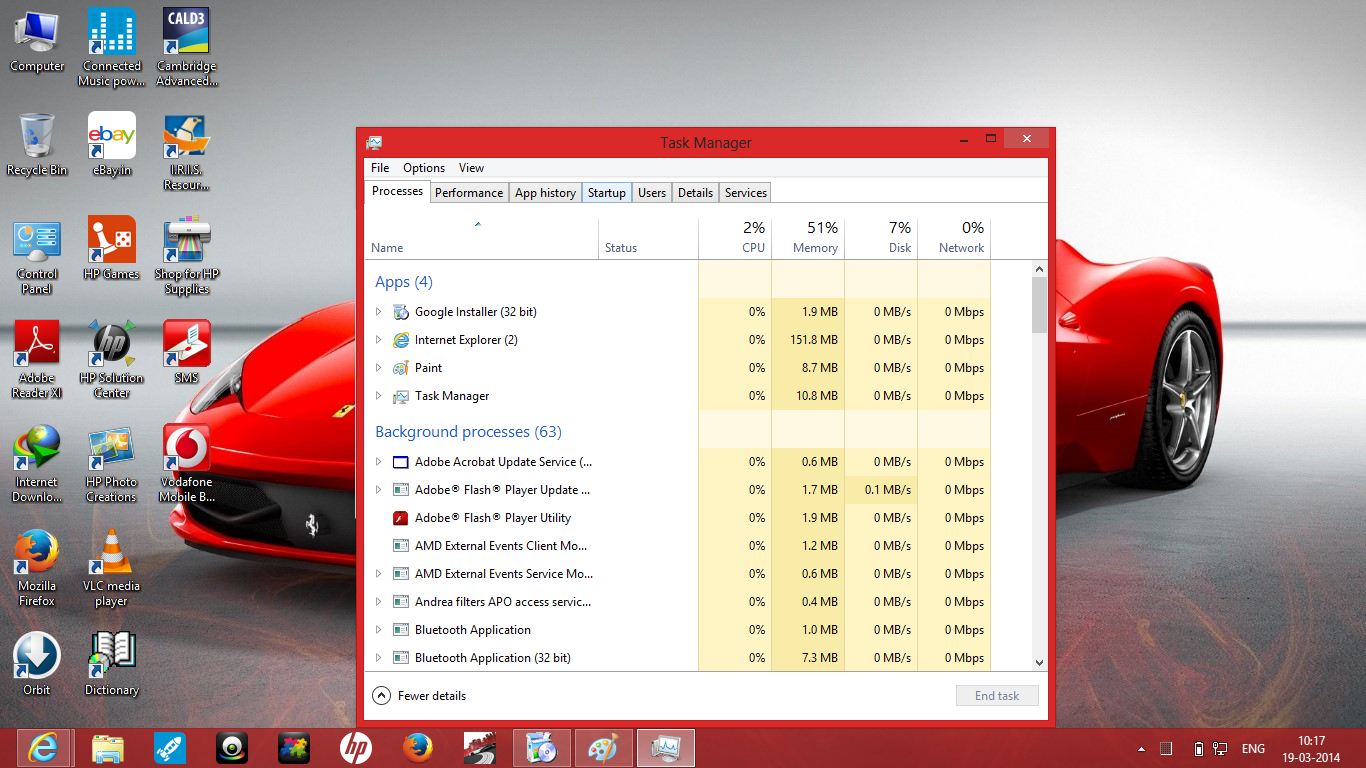
  1. Press Ctrl+Alt+Del to open task manager. 
  2. Click on the Startup Menu.
  3. Choose the applications with high impact on startup.
  4. Check the applications extremely useful to you or your pc like HP Digital Imaging monitor.
  5. Other then the required applications disable all other applications as Skydrive and others.
  6. Your speed of startup will be increased.


                                                          For Suggestions Contact us                                        
                                                 Mail me to punia.punia5@outlook.com